Embird – Modular Embroidery Software Version 2026 Released!
NEW FEATURES
HIGHLIGHTS
GENERAL ENHANCEMENTS
The Embird 2026 update focuses on streamlining the workflow between the Editor and Manager modules, and File Explorer of the Operating System. These enhancements aim to accelerate the process of finalizing designs, converting file formats, and managing project assets.
- Improved Workflow Integration: New controls allow for the immediate transfer of finished designs to the Operating System (OS) File Explorer for external file operations.
- Advanced Slot Storage: The Manager, Editor and Cross Stitch modules now feature “Slot Storages,” designed to simplify the organization of projects containing multiple similar designs, such as team name labels or serialized embroidery sets. Visual Identification: These slot storages are color-coded to distinguish them from pre-defined folders, which remain marked with letters.

- Creative Tools in Editor: The Editor module has been expanded to include a wider variety of mesh fills for complex textures and new lightweight outline fonts for minimalist or delicate lettering.
- Glyph Identikit

To find the proper font for digitizing, the Glyph Identikit utility allows users to locate specific system fonts among thousands by using manually entered visual attributes, such as a “flat top on the letter A” or the overall style of the typeface. The software recognizes thousands of TrueType fonts and assists with both installation and the printing of font booklets. Fonts matching the search criteria can be located on the internet for instant download with a single click. Once downloaded, these matching fonts can be used with the Font Engine module, which automatically converts them into embroidery stitches. Glyph Identikit is a separate utility installed alongside Embird 2026 and is launched via its own desktop icon.

Unlike automatic font identifiers that apply matching criteria arbitrarily, Glyph Identikit relies on precise manual criteria selection to ensure accuracy.
File Conversion Updates
Several new features have been added to the “Choose Target File Format” dialog box to improve file handling and accessibility:
- Other .HTM: Adds an option to create an .HTM file with an embedded embroidery design file.
- Open results in File Explorer: Automatically opens the destination folder in the OS once conversion is complete.
- .ZIP Conversion Results: Compresses the output files into a .ZIP archive immediately after conversion.
- .HTM Conversion Results: Generates an .HTM summary or container for the converted files.
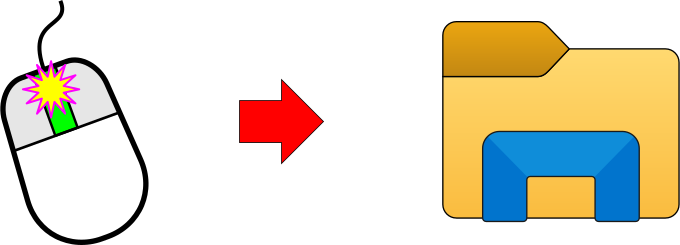
- Middle-Click Shortcut: Clicking a file in the list with the middle mouse button launches File Explorer with that specific file pre-selected. If the file list has a context menu, this function is available also from this menu.
AI Search (Internet)
In multiple dialog windows, an “Internet Search in AI Mode” button has been added next to the standard Help button. This button launches an internet browser with a prompt for an AI to provide information regarding the subject of the dialog window. The AI summarizes relevant information found online. Unlike the Help button, which provides information from local Embird files, the AI Search function retrieves information from the internet.
Additionally, this functionality is also mapped to the F1 key. If Embird’s local manual does not contain information for the active window, the software will automatically launch the internet AI search instead.
STUDIO NEXT
- Added 44 new blackwork samples to the Mesh tool.
- Added 19 new samples to the Outline tool.
- The Mesh Origin point and Effect Focus points for mesh and fill objects can now be moved interactively using the cursor.
- The background filters for raster images are now saved with the design. This is particularly useful for Sfumato designs, where filters influence the generation of stitches. Additionally, filter settings have been duplicated in the global settings window for improved clarity. Active image filters are now indicated above the hoop area in the workspace to prevent confusion.
- Increased the number of color swatches in the Color Mixer windows from 26 to 34.
- Added options in Object’s Parameters to override global tie-up settings with individual tie-in and tie-off settings.
- Improved the interactivity of switching between selection box modes (move, scale, rotate, and skew), allowing for easier mode switching via the cursor.
- Included additional parameters to control the Appliqué tack-down layer.
- Introduced a new feature allowing the use of complex patterns (such as stars or triangles) for tie-up stitches. Multi-directional stitch patterns provide a more robust anchor on loosely woven or stretchy fabrics. Users may also override global tie-up stitch settings at the individual object level.
- Added functionality to the Color Mixer windows to select colors directly from thread catalogs. These colors can be dragged and dropped into quick-access swatches for subsequent use within Studio Next. These color swatches are persistent across sessions.
- Added toggles to enable or disable long-click and double-click operations with nodes. These options are located in “Controls-General” settings.
- Centralized Thread Control: A new Thread List has been added to the main control panel. This feature summarizes all colors in a design, facilitates matching with thread catalogs, and allows for rapid color changes via the palette or Color Mixer.
- Fixed an issue applying Pull Compensation to auto-column objects when using predefined styles.
- Fixed an issue regarding the shrinking of objects.
- Fixed an issue in stitch generation for specific outlines with samples.
- Fixed an issue involving the import of certain SVG files.
- Increased the speed of the Graphical User Interface (GUI).
- Improved stitch layout smoothness in sharp corners for column (satin) objects. This reduces the need for manual segmentation of columns and accelerates the digitizing process.
- Improved the smoothness of workspace zooming.
- Enhanced GUI responsiveness during editing and transformation tasks. This significantly improves workflow speed, particularly when managing complex, large-scale designs with high stitch counts.
- Revised Help files and improved the PDF export functionality for documentation.
- Sfumato Color Tuning: The Tune Colors function now applies to individual shades within Sfumato objects rather than just the base color, facilitating more precise adjustments for portrait work.
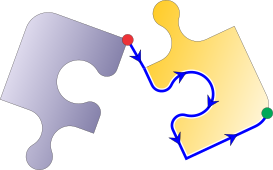
- Smart Connections: Introduced the Contour Smart Connection. This path begins at the closest points between objects and follows the target object’s outer edge. This is ideal for loose fills (mesh, motifs, or gradients) and can be concealed by a satin stitch zig-zag border.
- A new Accuracy tab has been added to the main control panel. Controls for the precise snapping of nodes and objects, as well as the BirdEye viewport, have been moved to this tab.A newly added snapping option is the snapping of guidelines to other targets. This can be used in combination with the slicing of objects via guidelines. Snapping a guideline first ensures that the cut is made precisely where required.
- The ability to change the start point of a curve has been expanded from Fill, Mesh, and Sfumato objects to include Outline, Manual Stitch, and Connection objects.
- Indicator of zero-sized objects added to the Inspector panel. If an exclamation mark (!) symbol is displayed instead of the object icon, it is a warning that the object has zero size. This sometimes occurs when importing objects from vector graphics, such as .svg files.
MANAGER
The Manager module in Embird 2026 introduces several automation and logging features designed to improve file tracking and organization efficiency.
New Automation and Logging Options
- Automatic Folder Access: The option “Options > Automatically > Open output folder when conversion completed” has been added. When enabled, this feature automatically triggers the OS File Explorer to display the destination directory immediately after a file conversion is finalized.
- Recent Files Tracking: The new “Options > Automatically > Log Recent Files” setting allows the software to maintain a continuous record of accessed designs.
- System Log: A new “Help > Log” feature has been implemented. This log is generated as an HTML file containing detailed design descriptions and embedded embroidery data. Users can review their activity history and, if necessary, export or download specific designs directly from the log file.
Workflow Enhancements
To assist with repetitive tasks and rapid file iteration, a new interface element has been introduced:
- Manager Slots Panel: Located at the bottom of the Manager window, the Slots Panel allows users to quickly save or open selected files using “slots”. This feature automatically appends a slot-specific name to the filename, which is particularly useful for managing variations of a single project or organizing designs for production batches.
EDITOR
The Editor module in Embird 2026 has been significantly expanded with new decorative fill types, advanced typography controls, and an extensive library of raster fonts.
The Editor module also receives significant updates to history management and manual point manipulation.
New Fill and Mesh Options
- Maze Fill: A new “Maze” fill type has been added to the “Insert > Background Fill” dialog, providing automated generation of labyrinth-style patterns.
- Expanded Pattern Library: The Mesh Fill dialog now includes over 1,000 new patterns for increased textural variety.
- Tube Effect: A new “Tube” option in the Mesh Fill dialog allows users to convert simple contours into thicker, dimensional paths that resemble neon tubes or pipelines.

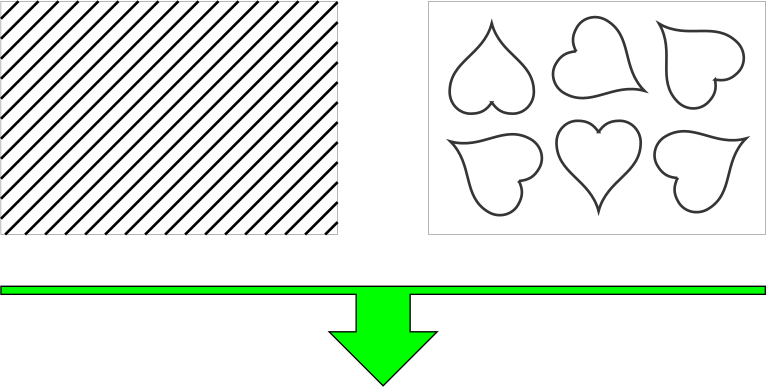
- Boolean Operations: New buttons for “Back plus Front”, “Intersection” and “Back minus Front” have been integrated into the Mesh Fill dialog. These tools allow for masking or combining multiple mesh patterns to create custom geometric shapes.

Typography and Font Enhancements
The update introduces comprehensive upgrades to font engine and outline text manipulation:
- Raster Font Expansion: Over 2,100 new raster fonts have been added to the “Insert > Font Engine Text” and “Insert > Simple Outline Text” dialogs. These fonts support 2x, 4x and 8x automatic upscaling to maintain clarity at larger sizes.
- Advanced Outline Text Controls: The “Insert > Simple Outline Text” dialog now includes:
- Envelope: Modify the overall shape and curvature of the text block.

-
-
- Overlap: Control how characters stack or layer upon one another.
-

-
-
- Lift: Adjust the vertical baseline of individual characters to create ascending or descending effects.
-

-
-
- Shadow: Add repeated contours to simulate a drop-shadow or layered depth effect.
-

-
-
- Cut: Apply horizontal or vertical slices across text to create stylistic gaps.
-

-
-
- Multiline Text: Simple Outline Fonts now support multiline text with optional line overlap.
-

-
-
- Jittering: Random glyph rotation.
-

- Celtic Text and Knots:
- Over 1,600 new raster fonts are now available in the “Insert > Celtic Text” dialog.
- The “Insert > Celtic Knots Text” dialog now supports 2x, 4x and 8x upscaling and allows the use of any installed TrueType or OpenType fonts.
Note: Raster fonts mimic the pixel-art style of retro fonts. They are particularly suitable for blocky lettering in Celtic knot and cross-stitch styles.
Note: Simple Outline Fonts are lightweight fonts intended primarily as a complement to loose mesh fills for decorative backgrounds. However, they can also be used to create standalone designs.
Workflow Integration
- Editor Slots Panel: Similar to the Manager module, a new Slots Panel has been added to the bottom of the Editor window. This enables users to quickly save or retrieve designs using slot-based naming conventions.
Advanced History Management
- Undo History Panel: Accessible via Edit > Undo History Panel. This feature displays a chronological list of recent actions. Selecting any state within the panel instantly reverts the design to that specific point in time.
- Redo History Panel: Accessible via Edit > Redo History Panel, providing a corresponding list for re-applying reversed actions.
Automated Data Recovery
- Unsaved File Backup: A new toggle is available under Options > Back-up Unsaved Files. When enabled, the software automatically caches unsaved documents in a dedicated directory. These files can be retrieved via File > Open Unsaved. This feature is intended as a session protection. If a file is closed without saving, the work can be recovered.
Interactive Node Editing
Enhanced controls have been integrated into Points Editing Mode and Freehand Select Mode.
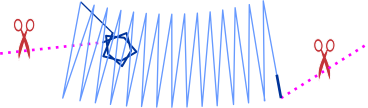
- Node Removal: A long press of the left mouse button on an existing node deletes it.
- Node Creation: A long press or double-click along a stitch path inserts a new point.
- Note: These interactive features require the Options > More Controls setting to be active.
Object Selection and Transformations
The object selection system has been updated to streamline the transition between different transformation types.
Enhanced Control Options
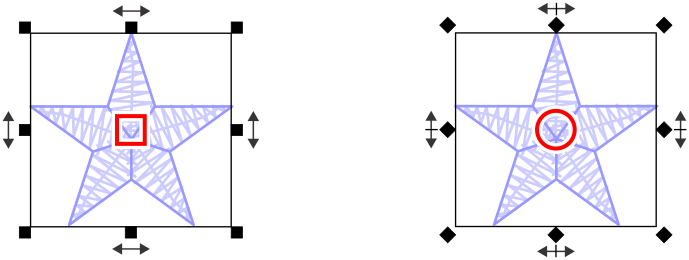
A new setting, Options > More Controls, has been introduced to the interface. When this option is enabled, a dedicated control handle – represented as a small square or circle – appears at the geometric center of the selection box.
- Mode Toggling: Clicking this center handle allows the user to switch instantly between Select and Rotate modes without navigating through sub-menus.
Transformation Modes
The behavior of the bounding box handles changes depending on the active mode:
- Select Mode: In this mode, the corner and side handles are used to scale (resize) or skew the object along a specific axis.
- Rotate Mode: In this mode, the same handles are used to rotate the object around its anchor point or mirror the object across its axes.
FONT ENGINE
The Font Engine plug-in in Embird 2026 has been updated with several layout and styling enhancements, providing more granular control over text positioning and visual effects within the “Insert > Font Engine Text” dialog.
New Layout Tab Options
The following features have been integrated into the “Layout” tab to streamline complex typography tasks:
- Character Overlap Control: The “Overlap” option allows users to define how characters stack or layer upon one another.
- Vertical Displacement: The “Lift” feature enables the precise vertical adjustment of characters, allowing for the creation of staggered, ascending, or descending text effects along the baseline.
- Automated Shadowing: A new “Shadow” option has been added, which generates a secondary layer or offset contour to simulate depth and provide a drop-shadow effect to the text.
- Text Slicing: The “Cut” utility allows for the application of horizontal or vertical breaks across the text. This tool is useful for creating decorative gaps or dividing letters for multi-color effects.
Note: Unlike the Simple Outline Fonts in the Editor, the fonts used with the Font Engine are generated with Satin or Tatami fills. These new functions – such as shadowing and slicing – operate directly on these filled font types.

CROSS STITCH
The Cross Stitch plug-in in Embird 2026 has been updated to include advanced text manipulation tools and an expanded font library, specifically within the “Insert > Simple Outline Text” dialog. These additions allow for more creative flexibility when incorporating lettering into cross-stitch patterns. Also, the Cross Stitch plugin has been updated to align with the core Manager and Editor navigation standards.
Advanced Text Styling and Layout
New options have been integrated to provide granular control over the geometry and placement of outline text:
- Envelope Modification: The “Envelope” option allows users to distort or warp the text block into various shapes, such as arcs or perspectives, to fit specific design areas.
- Layering and Overlap: The “Overlap” feature provides control over how adjacent characters interact, allowing users to define which parts of a letter appear above or below others.
- Vertical Displacement: Use the “Lift” tool to shift characters upward or downward relative to the baseline, facilitating staggered or “bouncing” text effects.
- Visual Depth: The “Shadow” option automatically generates a secondary set of stitches to create a drop-shadow effect, adding depth to the lettering.
- Text Slicing: The “Cut” utility can apply horizontal or vertical gaps across the text.
Expanded Asset Library
- Raster Font Integration: More than 2,100 new raster fonts are now available. These fonts include an automatic upscaling feature (2x, 4x, 8x), ensuring that character outlines remain crisp and usable even when increased in size for larger cross-stitch projects.
Workflow Integration
- Cross Stitch Slots Panel: To maintain consistency across the Embird suite, the Slots Panel has been added to the bottom of the Cross Stitch window. This allows users to quickly save and reload designs using a standardized slot-based naming system, streamlining the management of multiple project versions.
Advanced History Management
- Undo History Panel: Accessible via Edit > Undo History Panel. This feature displays a chronological list of recent actions. Selecting any state within the panel instantly reverts the design to that specific point in time.
- Redo History Panel: Accessible via Edit > Redo History Panel, providing a corresponding list for re-applying reversed actions.
Automated Data Recovery
- Unsaved File Backup: A new toggle is available under Options > Back-up Unsaved Files. When enabled, the software automatically caches unsaved documents in a dedicated directory. These files can be retrieved via File > Open Unsaved. This feature is intended as a session protection. If a file is closed without saving, the work can be recovered.
 UPGRADE FEE
Upgrade from version 2025 and older to Embird 2026 is a paid upgrade and a new main registration password is required. Otherwise, the new software runs only in demo mode. The upgrade fee is £40 for registered users of Embird 2025 and more for users of an older version.
The registration numbers for all plug-ins from previous Embird versions are valid in Embird 2026. You do not need to pay for these plug-ins again. However, to use these plug-ins with Embird Basic Program 2026, you have to upgrade to Embird 2026 to obtain the new main password for Embird 2026.
In other words, if you are a registered user of previous version of Embird (version 2025 or older), your plug-in registration numbers for Alphabets, Font Engine, Iconizer, Digitizing Studio, Sfumato Stitch and Cross Stitch will work also in Embird 2026. You only need to pay the upgrade fee for the Basic Embird Program 2026.
 Upgrade
Please purchase the upgrade in our Embird Online Shop. A new registration password will be delivered in an e-mail.
Fees
- Upgrade from Embird 2025 to Embird 2026 – £40

- Upgrade from Embird 2024 to Embird 2026 –£69
- Upgrade from Embird 2023 or older to Embird 2026 – £81
Note: Upgrade prices are available in US dollar too in our Embird Online Shop
 Installation
This is a short overview of the installation. If you need a more detailed guide, please read Installing Embird tutorial.
Follow these steps to install new Embird:
- Download 32-bit or 64-bit installation file of Embird 2026 from download site. Installation file contains all plugin-ins.
- Uninstall older Embird.
- Install Embird 2026 by running its installation file via “Start > Run” menu.
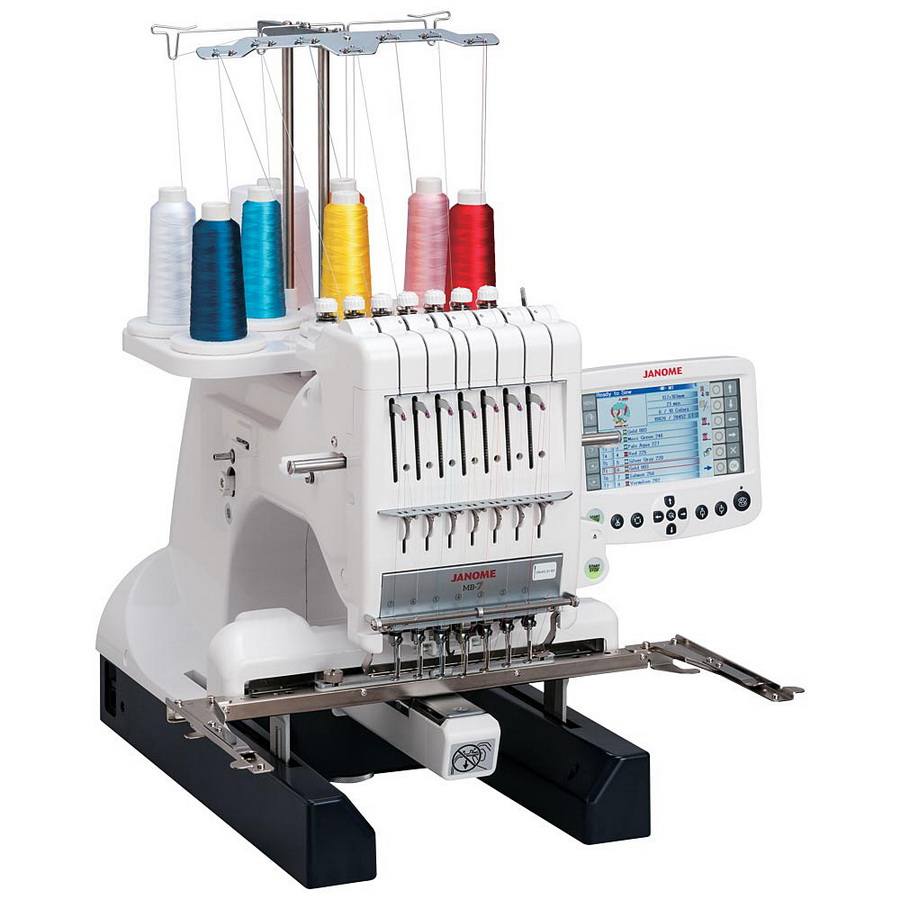
One of our favourite embroidery machines that comes highly recommended is the Janome B7
Unique Ideas
Do you have those uniques creative ideas but just need that little bit of extra help to make your creative ideas a reality? Then why not contact one of our expert Embird teachers today.
Incredible tools
Embird has an excellent variety of tools to help you bring your unique creative ideas to life. Visit our online shop today to see all that Embird has to offer.
Create a boost
Embird provides you with all the tools you need to give your embroidery business that extra creative boost. Why not join our forums today to discuss your unique creative business ideas with fellow members? The forums can be found under the training tab.
What are the next steps to follow now that I upgraded to Embird 2026?